Contents
Securing Your Photos And Camera
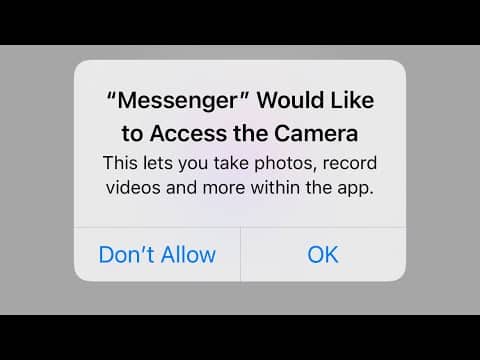
Your photos can reveal a lot about you: your friends, family, the places you visit, and even when you visit them. Ensuring they remain private is crucial. Just as with other app permissions, you can control which apps have access to your photos under ‘Privacy’> ‘Photos’. You can choose to allow access to all photos, none, or select photos.
Similarly, you can manage which apps have permission to use your camera. Not every app needs access to your camera, and by limiting this access, you can prevent malicious apps from secretly taking pictures or videos. Navigate to ‘Privacy’> ‘Camera’ to review and manage these permissions. If an app doesn’t need to take photos or videos, consider denying it access to your camera.
Configuring Privacy For Messages And Calls
Your personal conversations and call logs are among the most sensitive data on your iPhone. It’s essential to protect this data from prying eyes. One way to do this is by setting up encrypted communication through iMessage. Encrypted messages can only be read by the sender and recipient, providing a secure line of communication.
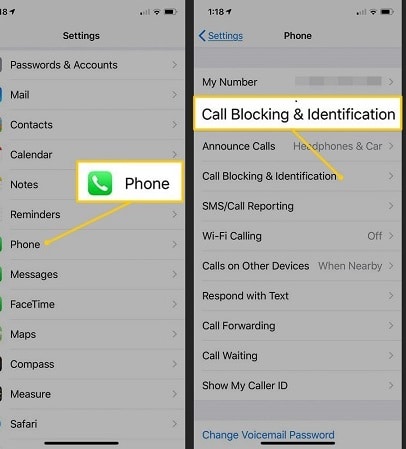
In addition, consider limiting who can reach you by phone, FaceTime, or iMessage in ‘Settings’> ‘Phone’> ‘Call Silencing and Blocked Contacts’. Here, you can block specific contacts or numbers from being able to contact you. Furthermore, consider enabling ‘Silence Unknown Callers’ to prevent calls from people not in your contacts, which can help protect against scam calls. By taking these steps, you can ensure your conversations remain private and secure.
Controlling Siri And Dictation
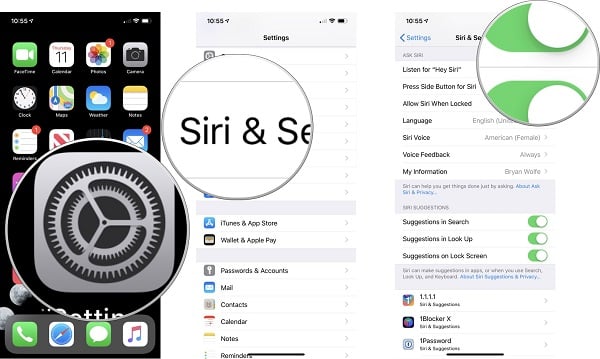
Siri, Apple’s virtual assistant, can be a powerful tool, but it’s important to remember that it also has access to a wealth of your personal data. Siri learns from your behavior to provide personalized responses, but you may not be comfortable with it having access to all of your information. In ‘Settings’> ‘Siri & Search’, you can control which apps Siri can access and whether Siri can learn from and make suggestions based on your behavior in those apps.
Dictation, which turns your spoken words into text, can also be managed to protect your privacy. In ‘Settings’> ‘General’> ‘Keyboard’, you can toggle ‘Enable Dictation’ on and off. By limiting Siri’s access to your data and managing your dictation settings, you can ensure that your virtual assistant serves you without compromising your privacy.
Using Privacy Features For Safari Browser
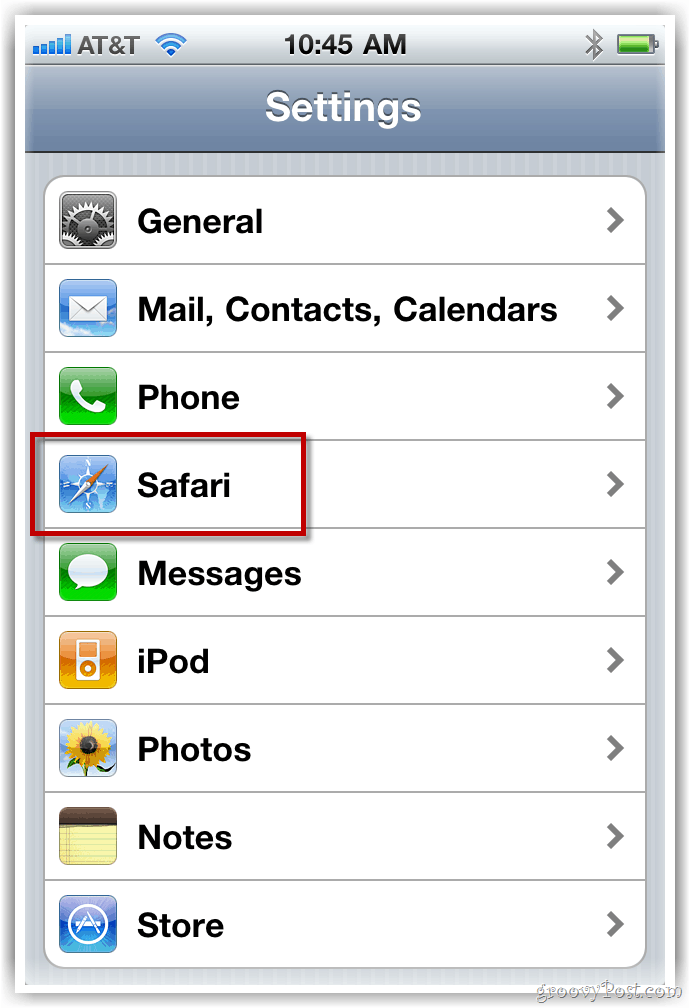
Your web browsing activities can reveal a lot about your interests, habits, and more. It’s crucial to control what data websites can collect about you. Safari, Apple’s web browser, has a range of privacy features that you can use to protect your browsing habits. In ‘Settings’> ‘Safari’, you can block all cookies, prevent cross-site tracking, and warn about fraudulent websites.
Also, Safari provides a ‘Private Browsing Mode’, which doesn’t save your browsing history and autofill information. This can be particularly useful when you are using a shared device or when you want to browse without leaving a trail. Remember, your online privacy is just as important as your offline privacy.
Implementing Ad Tracking Restrictions
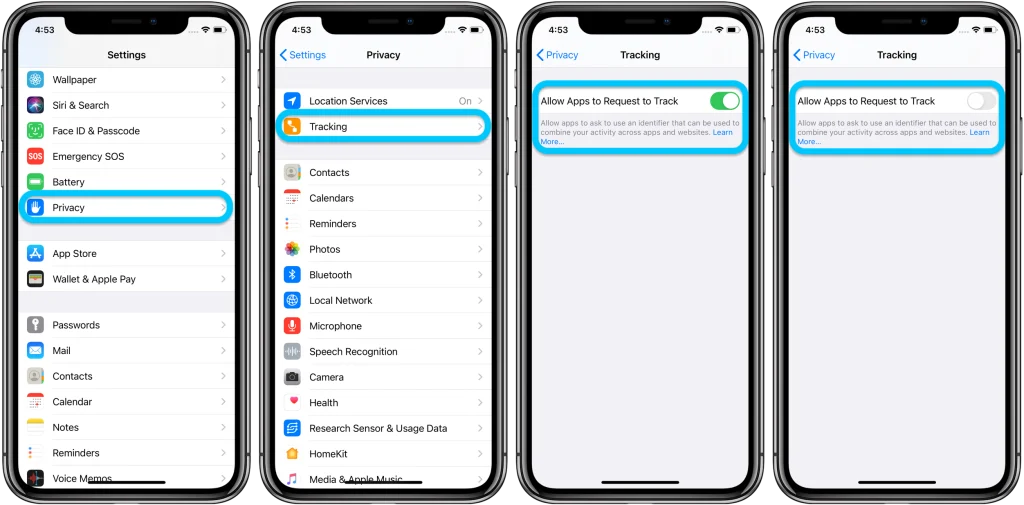
Interest-based ads use information about your activity to provide you with targeted advertisements. While this can sometimes be useful, it can also feel invasive. Thankfully, Apple provides a way to limit this tracking. In ‘Settings’> ‘Privacy’> ‘Tracking’, you can toggle ‘Allow Apps to Request to Track’ to prevent apps from accessing your device’s advertising identifier.
In addition to this, Apple offers a range of options in ‘Settings’> ‘Privacy’> ‘Apple Advertising’. Here, you can choose to personalize ads based on your App Store and Apple News usage, or you can completely turn off personalized ads. By taking control of these settings, you can decide how your data is used for advertising.
Exploring Advanced Privacy Settings: Sign In With Apple
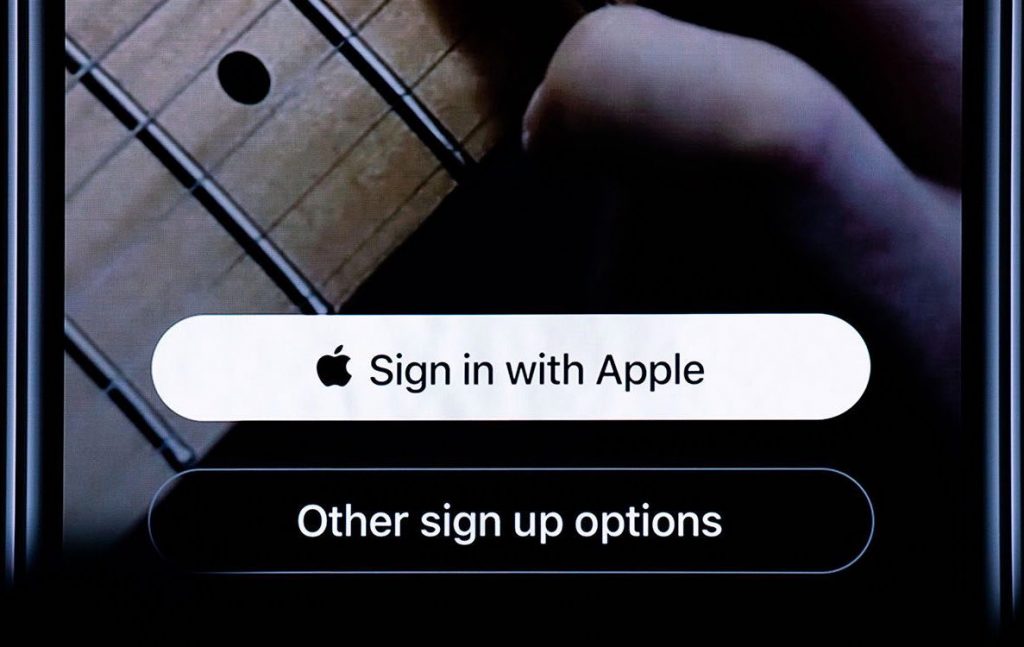
‘Sign in with Apple’ is a privacy feature that allows you to sign into apps and websites using your Apple ID without revealing your personal email. This way, your email stays private, and you can still enjoy the convenience of single sign-on. You can even choose to hide your email, in which case Apple will create a unique, random email that forwards to your real one.
Moreover, you can manage these settings and check where you’ve used ‘Sign in with Apple’ in ‘Settings’> ‘[Your Name]’> ‘Password & Security’. It’s a powerful tool that adds an extra layer of privacy to your online accounts. When given the choice, consider using ‘Sign in with Apple’ to keep your email address private while maintaining convenient access to your accounts.
Take Control Of Your iPhone Privacy Settings!
As you’ve explored, your iPhone is equipped with a myriad of privacy settings designed to keep your personal information secure. From basic lock screen security to advanced features like ‘Sign in with Apple’, every setting plays a critical role in protecting your privacy. The key is to be aware and proactive in managing your iPhone privacy settings to your comfort level. In this digital age, maintaining privacy is an ongoing process, not a one-time task. Stay informed, stay secure, and remember, privacy is not a luxury but a right we must all safeguard.