In today’s digital age, privacy has become more critical than ever. Your smartphone is a repository of personal and sensitive information, making it a prime target for breaches. As an iPhone user, you have a suite of privacy tools at your disposal to keep your information secure. This post aims to guide you through mastering these tools, with an in-depth exploration of all the iPhone privacy settings and step-by-step instructions to ensure you can effectively secure your device. Armed with this knowledge, you can rest easy knowing your personal data remains private.
The Importance Of Privacy
Personal information is highly valuable, particularly in today’s internet-connected world. Businesses, advertisers, and, unfortunately, malicious actors all have an interest in your data. By harnessing this information, they can create targeted advertising campaigns, carry out scams, or even commit identity theft. Understanding the importance of privacy, therefore, is the first step towards securing your iPhone and protecting your personal data from misuse.
Even with the best intentions, no system is entirely impervious to breaches. Data leaks and hacking incidents are not uncommon, making it vital to take every precaution to protect your personal information. Managing your iPhone’s privacy settings effectively can mitigate these risks, providing an added layer of protection against potential threats.
Knowing Your iPhone: An Overview Of Privacy Features
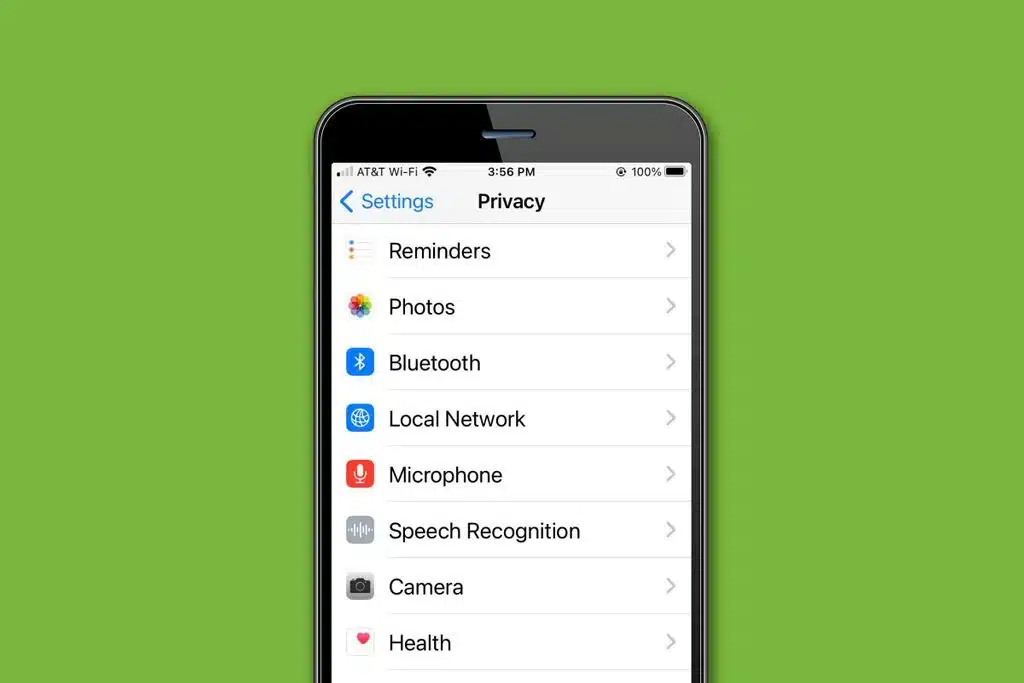
Apple has built a comprehensive suite of privacy features into the iPhone. These range from basic features like screen locks and app permissions to more complex features like location services and ad-tracking controls. Each of these features plays a crucial role in maintaining your privacy and can be customized to suit your needs and comfort level.
To begin, it’s essential to familiarize yourself with the ‘Settings’ app on your iPhone, specifically the ‘Privacy’ section. This is where you’ll find all the privacy-related controls neatly organized into categories for easy navigation. A firm grasp of these features and how they work will provide a solid foundation as we delve deeper into each privacy setting.
Setting Up Your Lock Screen And Face ID
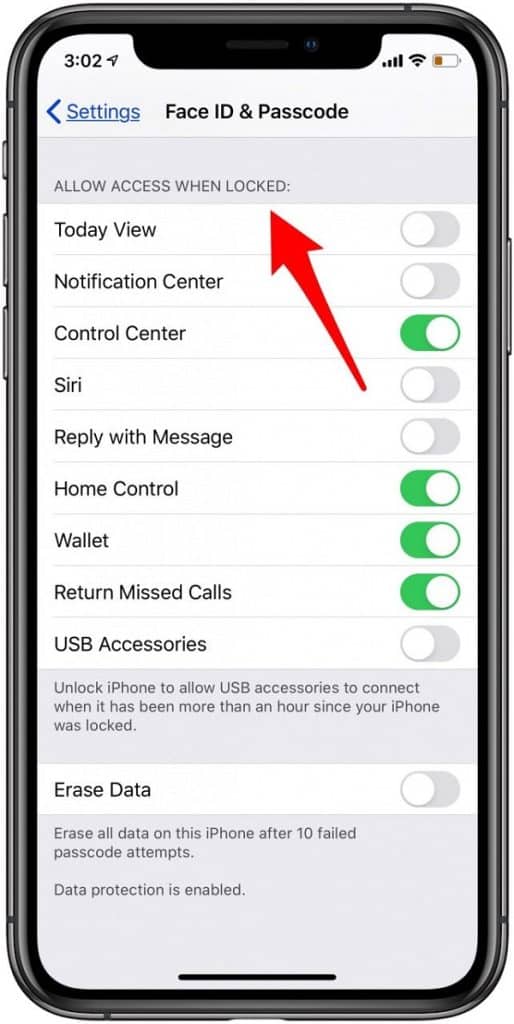
Your iPhone’s lock screen is the first line of defense against unauthorized access. By setting a passcode, you can ensure that only you can access the contents of your device. You can set a custom numeric code or, for added security, an alphanumeric passcode. It’s also crucial to ensure your iPhone is set to auto-lock after a short period of inactivity, further reducing the risk of unauthorized access.
For more advanced protection, iPhones offer a biometric security feature: Face ID. This feature provides an additional layer of security by requiring your unique facial data to unlock your phone. Additionally, it allows for secure authentication in apps, ensuring that even if your passcode is compromised, your sensitive data remains secure.
Controlling App Permissions
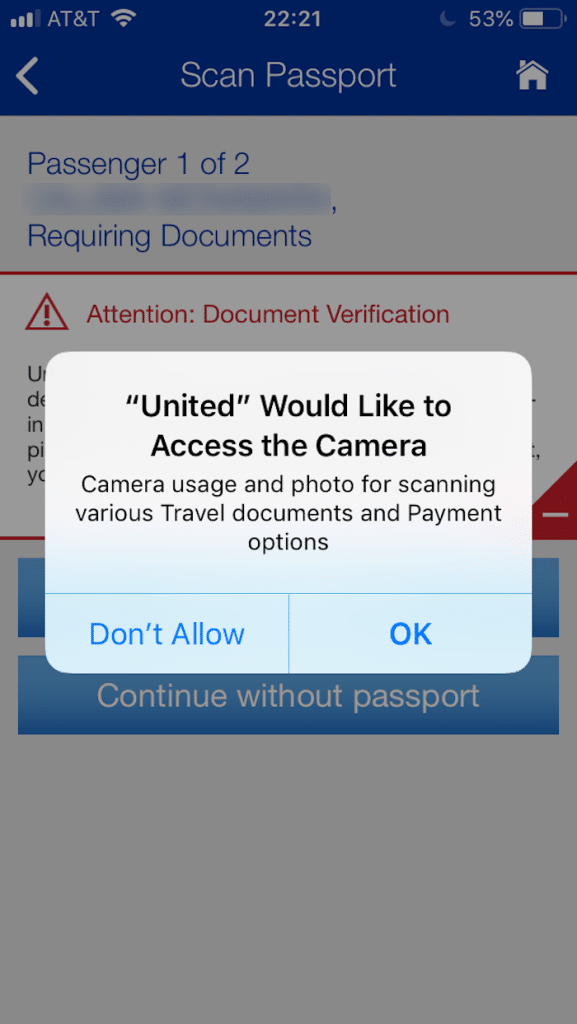
Each app installed on your iPhone requests permission to access certain features or data on your device, such as your camera, contacts, or location. While these permissions are often necessary for the app’s functionality, it’s important to review them periodically to ensure no app has more access than it needs. The ‘Privacy’ section in your ‘Settings’ app allows you to view and modify these permissions, putting you in control of your data.
Remember, the fewer permissions an app has, the less data it can access. For example, a game app doesn’t need to access your contacts, and a note-taking app doesn’t need to use your location. By controlling these permissions, you can limit your exposure and reduce the chances of your data being misused. Be vigilant about the permissions you grant and adjust them to match your comfort level.
Managing Location Services

Location services are critical for apps like maps, weather, or food delivery. But do all apps need to know your location? The answer is no. Overuse of location services not only drains your battery but also poses privacy concerns, as your movements can be tracked and recorded. Apple allows you to manage which apps can access your location and when.
Under ‘Privacy’> ‘Location Services’, you can set location access for each app to ‘Never’, ‘Ask Next Time’, ‘While Using the App’, or ‘Always’. For most apps, the ‘While Using the App’ option is sufficient, meaning the app can only access your location when it is actively used. This limits unnecessary tracking and conserves battery life.