Teach Siri Nicknames And Relations

We all know that Siri is pretty skilled when it comes to details like whom you’re asking to call or send a text. We often forget that the contact is saved under a different name and ask her to call someone by their nicknames in a rush. Don’t worry; Apple understands all your needs and therefore features a field, especially for the purpose, which Siri uses to identify whom you are talking about when you use a nickname.
You can choose to manually input the nickname like ‘bunny’ or ‘mum,’ just go to the contact card and tap on ‘edit’ then on ‘Add field,’ and simply choose a nickname from the list. Siri also remembers your relationship; you can add one manually – contact card>edit>add a related name, choose from the list a relationship you wish to assign, and click on the ‘i’ icon to link the specified relationship to a contact.
Alternatively, ask the assistant to call someone like ‘call my brother,’ and it will ask which contact you are referring to and whether or not they should remember it for the future.
Pronunciation

Does it annoy you too when someone mispronounces your name, but the list doesn’t have to include Siri. You can teach Siri how to pronounce unusual names by merely activating Siri and asking her, “ Can I teach you how to pronounce X’s name” and let her guide you through.
Shoot 4k Videos

You don’t need professional camcorders or action cameras to shoot amazing videos; if you have an iPhone 6 or above, it will do the job just fine. Not only this, but you can also change the frames per second for that smooth and high pixel video. Go to settings>Camera and tap on ‘record video’ or ‘record in slow-mo.’ From the listed resolutions, choose your preferred one, but keep in mind that a higher resolution directly means more storage space. Therefore, if you are running low on storage, make sure you insert an SD card.
Magnifier
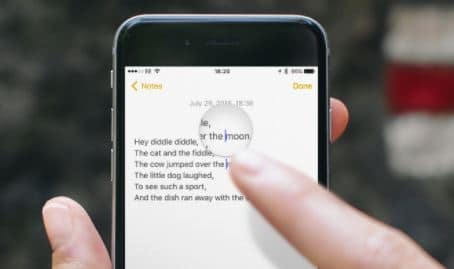
Did you know about the iPhones in-built magnifier option? You don’t need to open the camera and adjust its focus time and again; this iOS function works even better than your camera’s zooming option. Go to setting general accessibility and turn on ‘Magnifier.’ You can now activate it by simply clicking on the home button three times.
Conclusion
Your iPhone offers many more features that will enhance your experience and completely change how you interact with your phone. Let your friends know about these hidden features as well and see how they react.